
Pre-release 0.9.58 · still in development
Years under the stars.
An archive you can make sense of again.
FITSORA reads your image archive’s FITS headers, turns date-based capture folders into a project structure, and finally answers the simple questions: which targets, how many nights, how much integration, and whether the raw data exist somewhere else. The Backup manager backs them up with previews, versions and checksums.
Windows 10 (1809+) and Windows 11, x64 · free of charge
Why
A growing archive stops answering simple questions
The data are there. They are in headers nobody reads.
A capture folder is not a project
Capture software creates folders by date. A project spans twenty nights, three filters and two cameras, scattered across twenty folders that know nothing about each other.
After three years, nobody remembers what is there
How many nights went into this target? How much integration? Is a filter still missing? The answers are buried in the headers of twenty thousand files.
And nobody knows whether there is a second copy
An archive grows across several drives over the years. No file manager tells you which raw data really exist twice, with evidence rather than a guess.
The core
From date folders to an archive that gives answers
The real work is reading the headers that have been there all along.
Each exposure carries its target, filter, exposure time, optics, camera, temperature and location in its header. FITSORA reads these across the archive and derives projects, observing nights and sessions, without changing a single file.
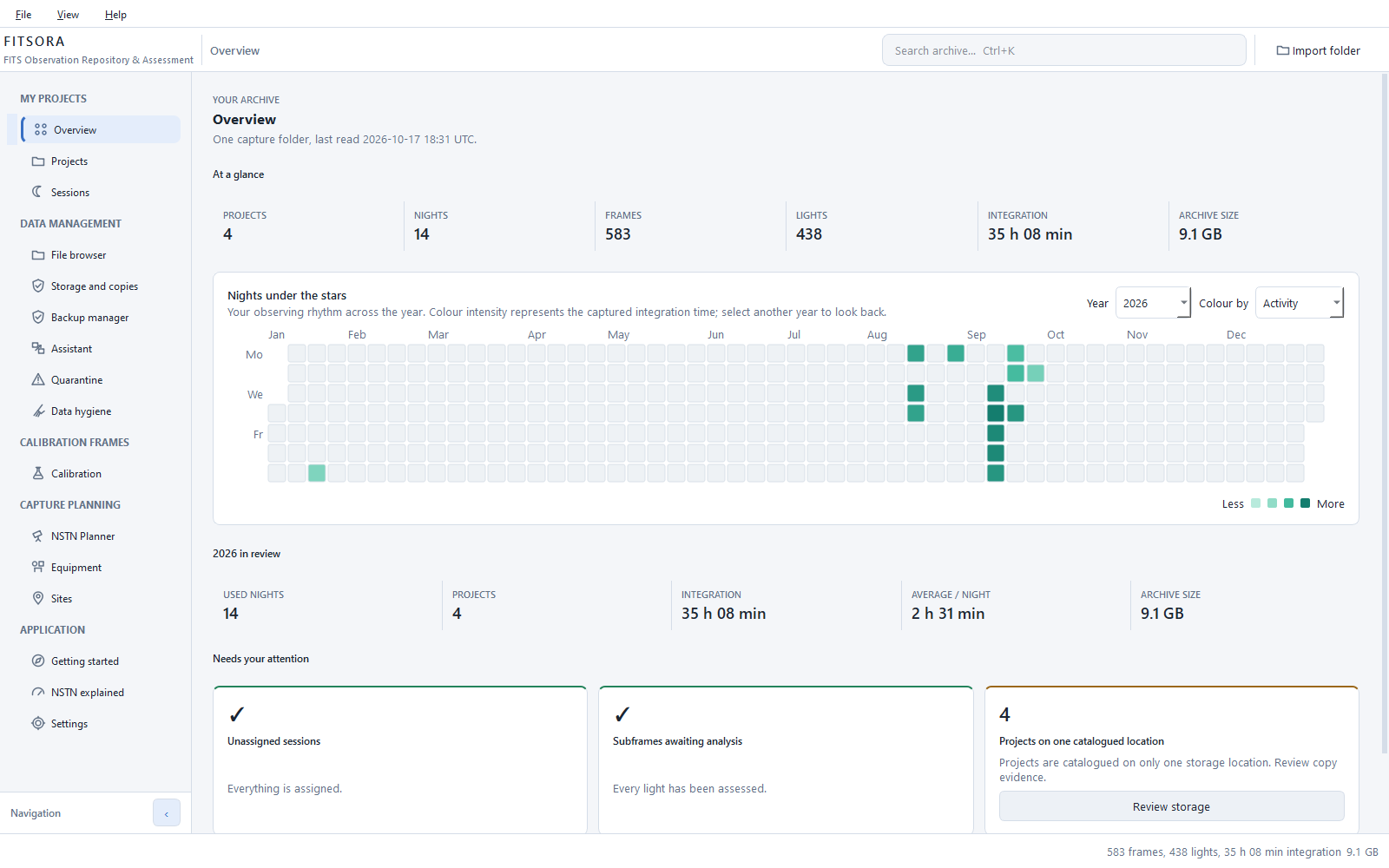
Then you can see what the years have added up to: nights per target, integration per filter, gigabytes used and storage locations. If you choose, you can move the files into this structure afterwards, with a preview, hash verification and a way back.
The mapping is not one to one: a project spans many nights, and one night can contain two targets. Renaming folders cannot reveal that structure. Reading the headers can.
Step by step
Import, understand, protect — then the finer details
The first four steps are the application’s purpose. What follows is optional.
Step 1: Import
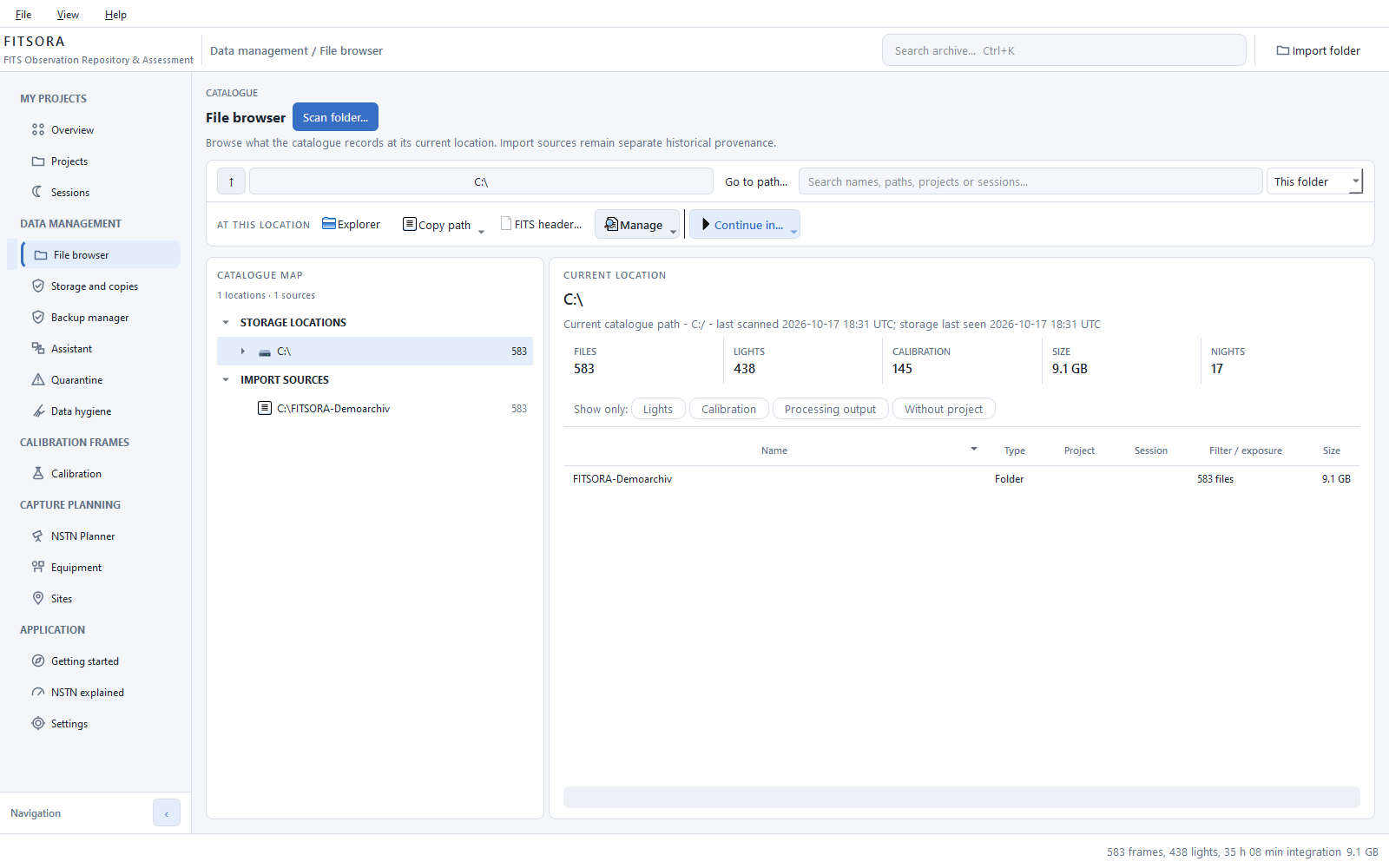
Scan the archive once, then only what is new
The scanner reads FITS headers and derives projects, nights, sessions and calibration requirements. It also reads XISF files, treating them as processing results alongside the raw data. Later scans process only new or changed files.
A catalogue built from OpenNGC, with almost 13,000 objects and their aliases, resolves target names. A cone search also identifies objects behind coordinates without a useful OBJECT entry. Current storage locations and original import sources stay separate.
Step 2: Understand
What all those nights have added up to
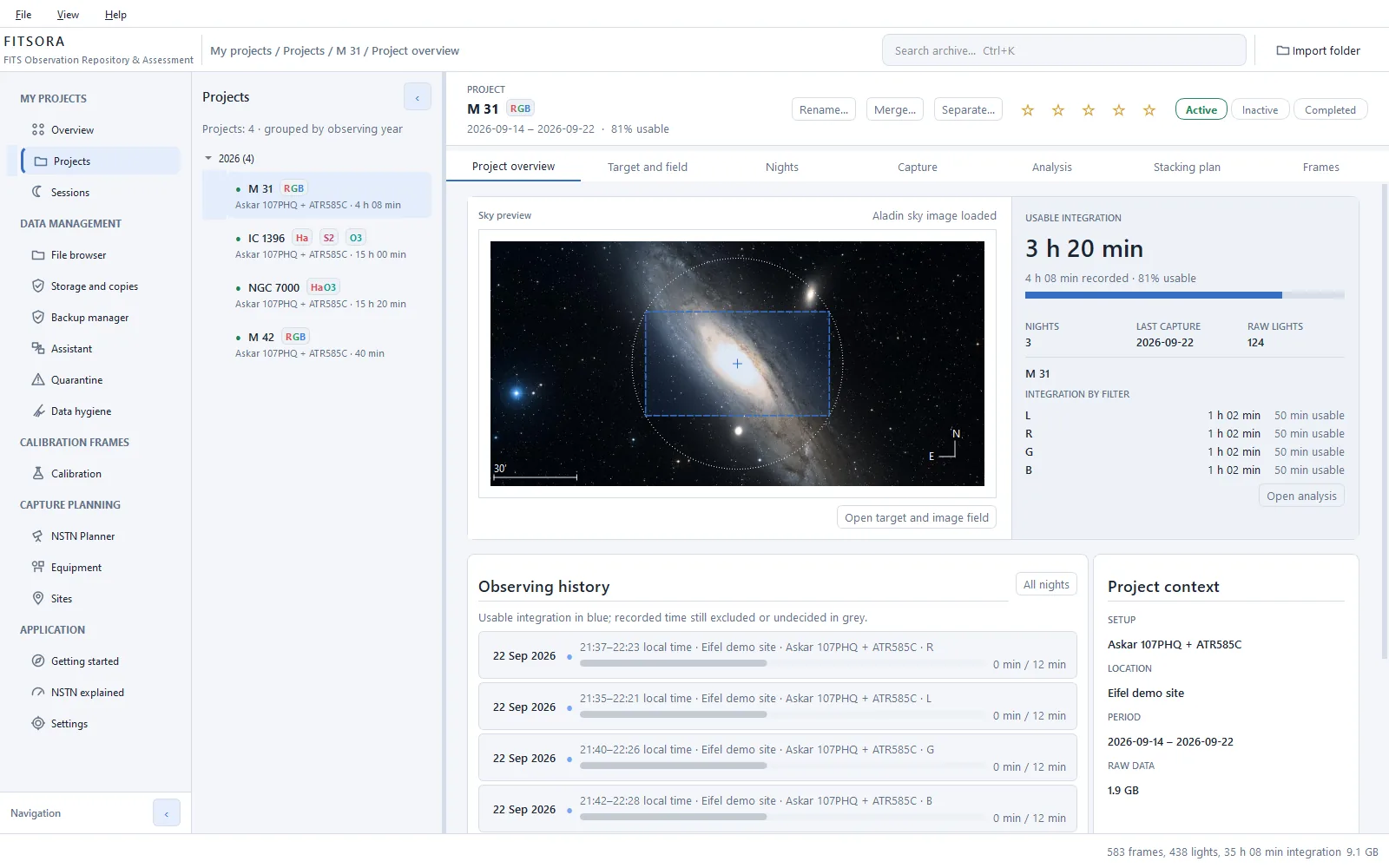
Each target gets a page: date range, nights, raw exposures, integration, equipment, observing site and disk space. Your optics’ field of view sits over the target so you can see whether the nebula fits.
The capture history lists each night with its local times, filter and contribution. These figures are counted from the headers, rather than estimated.
Step 3: Protect
Which raw data exist in only one place?
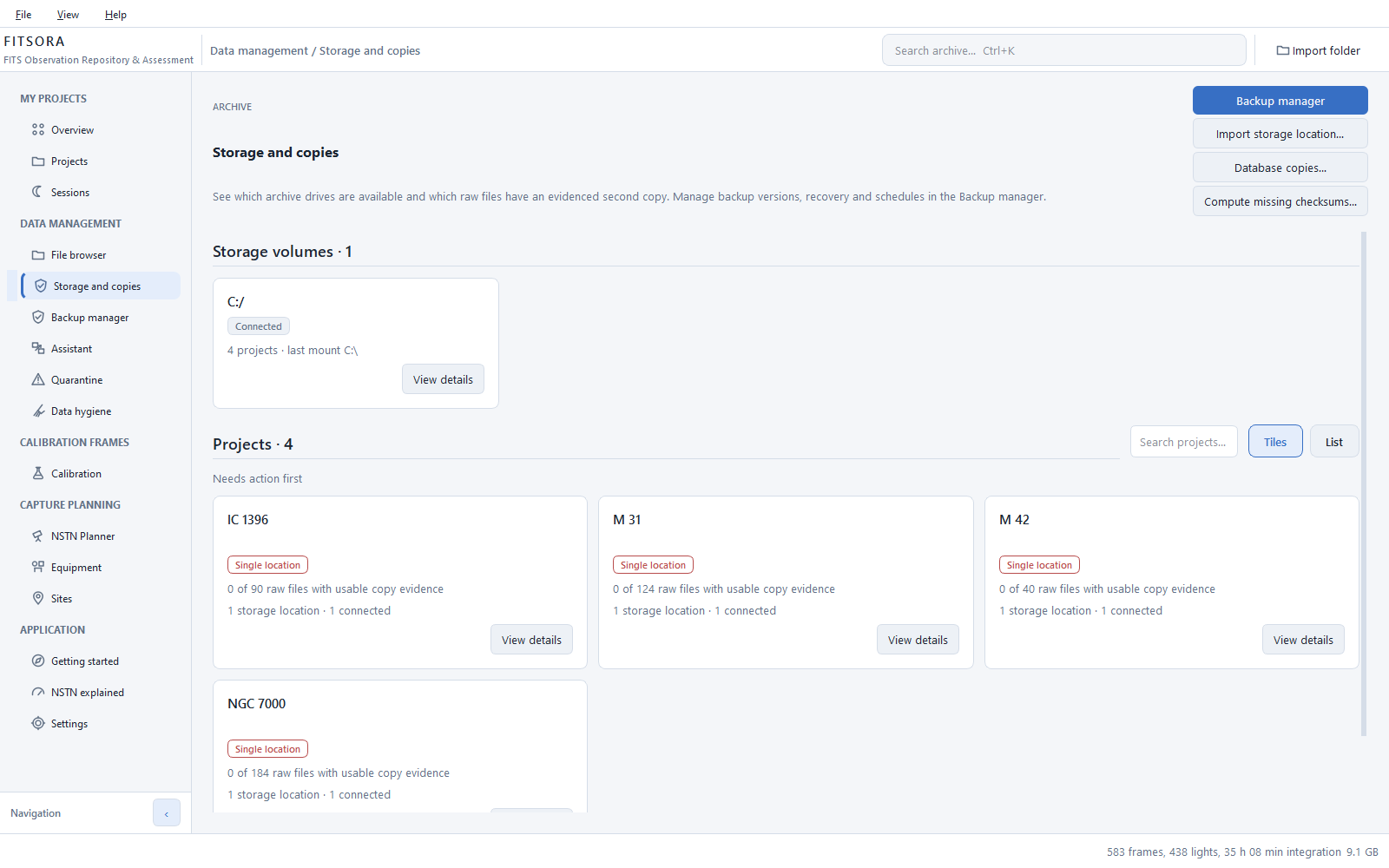
Copy evidence requires matching SHA-256 checksums on different drives. A second path alone proves nothing, and files without a checksum are explicitly unverified. Calculate checksums during import or add them later.
“Storage and copies” shows raw file counts, space used and known copies per project. It does not create backups. Use “Copy raw data” in the assistant for an ordinary verified copy including required calibration, or the Backup manager for managed, versioned backups.
Step 4: Back up
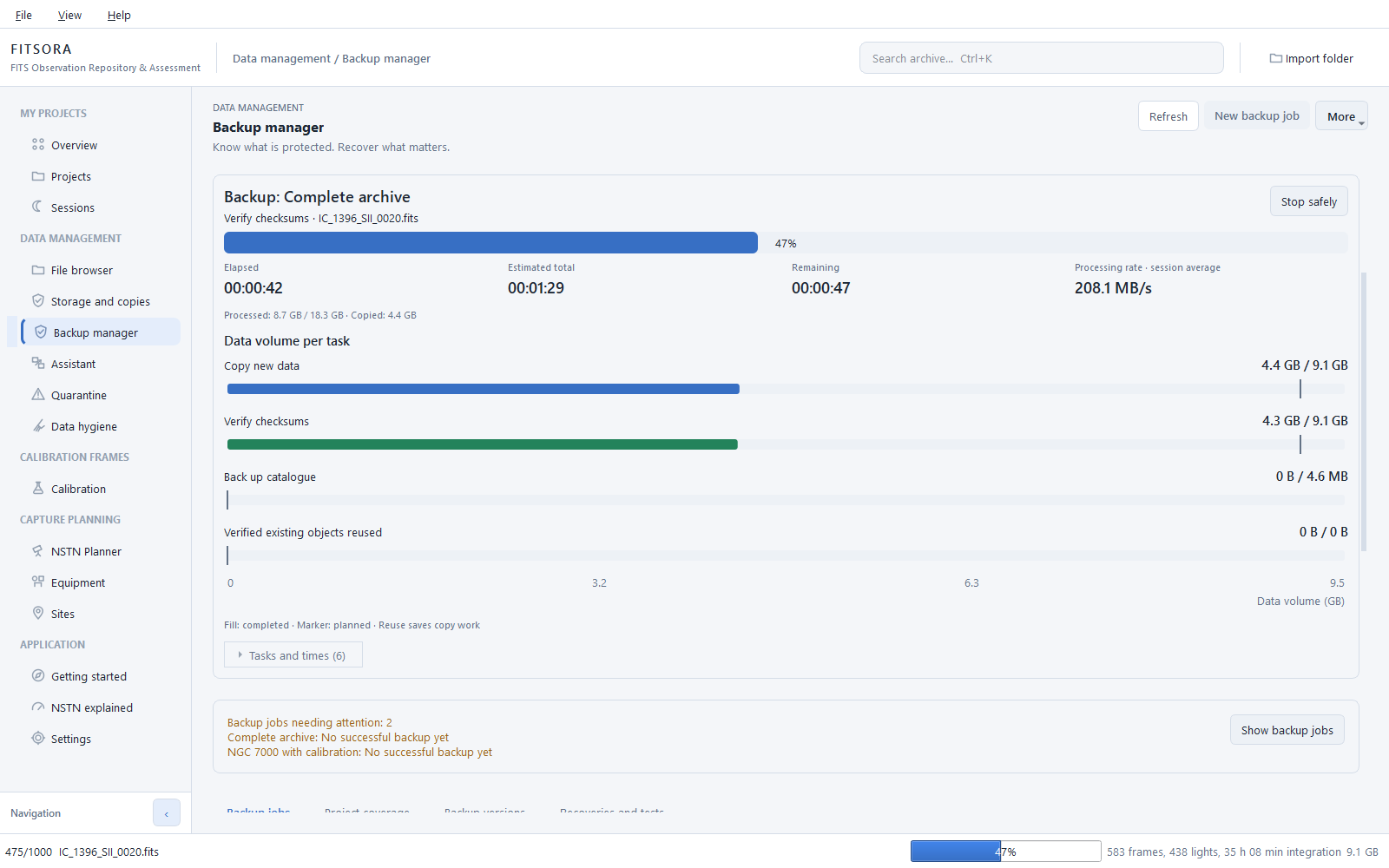
The Backup manager: jobs, previews and versions
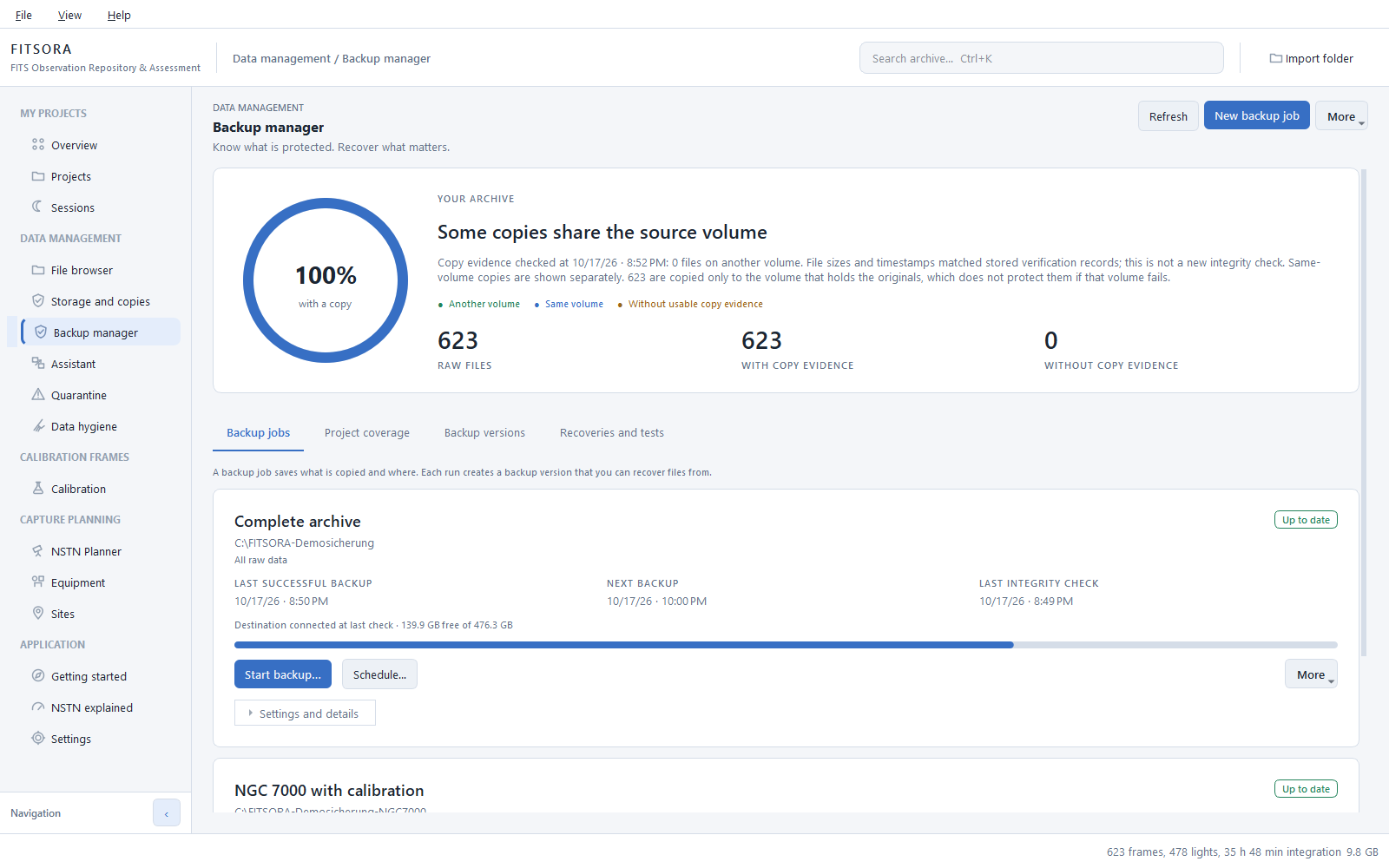
A job records what to back up and where: all catalogued raw data or selected projects, with the calibration frames they need. Optionally include the FITSORA catalogue.
Every file appears in a preview. Each run creates a backup version, reuses files from previous runs and records checksums. Restore files from a version. What the Backup manager does and where its limits are.
Step 5: Calibration
Calibration frames checked, rather than assumed
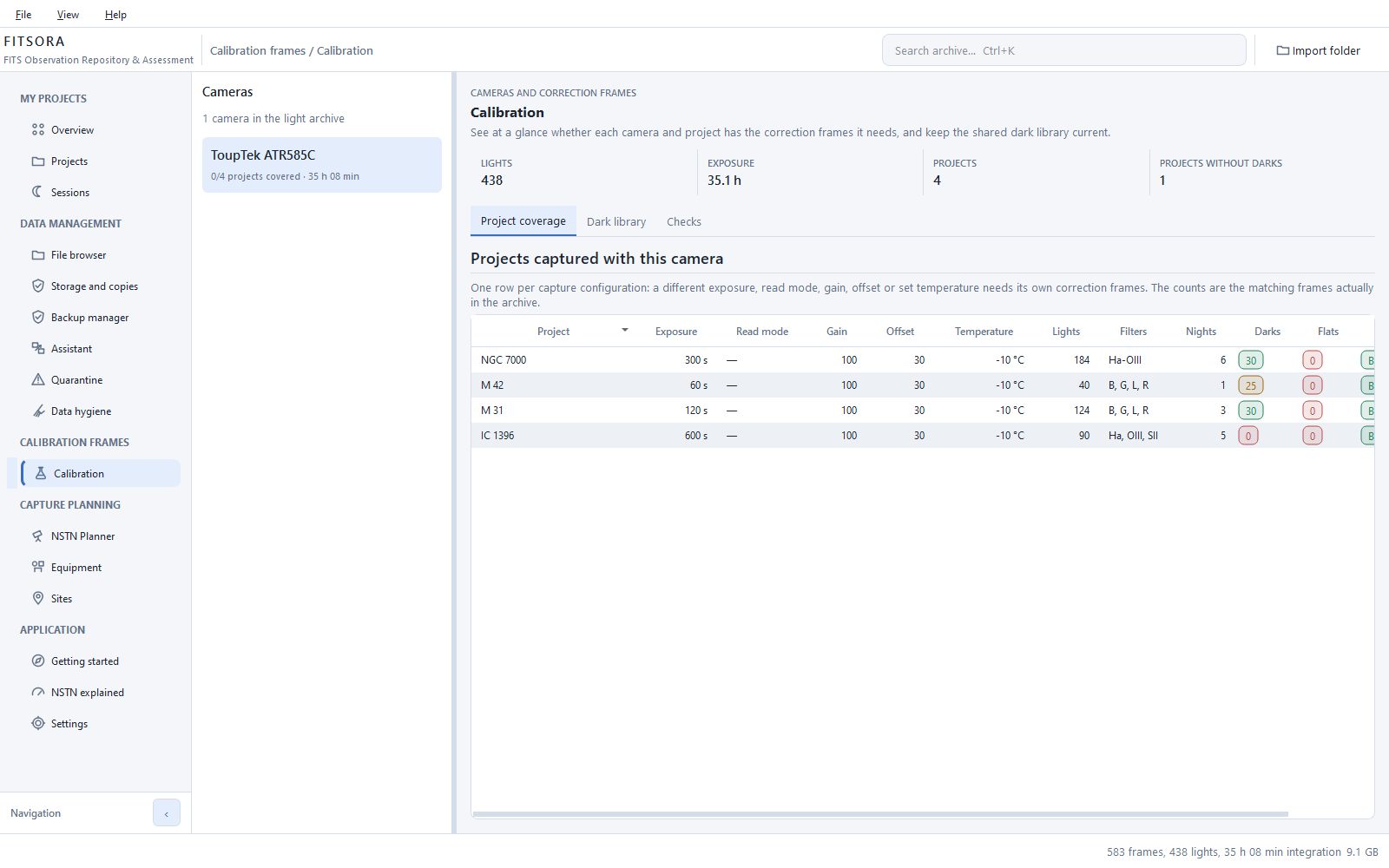
One row per capture configuration: exposure, read mode, gain, offset and set temperature. Beside it, the number of matching darks and flats actually in the archive.
Missing matches show a zero rather than an empty cell. Darks and bias stay in a shared pool outside projects: a dark series belongs to a camera, rather than a target.
Step 6: Assess
And if you want: select what to keep
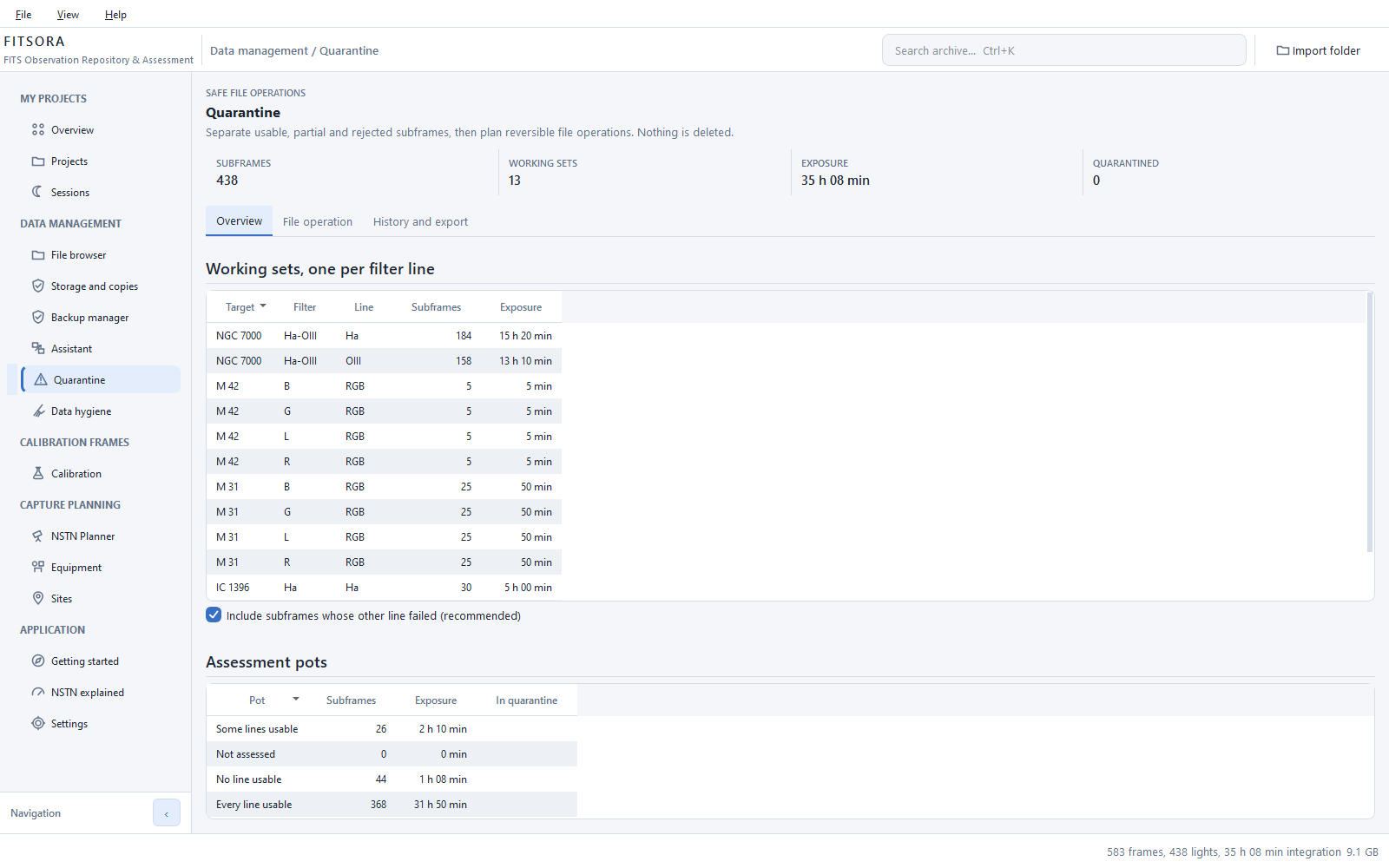
Exposure assessment is a setting and is off at first start. Enable it for an estimate of whether each exposure was usable under its night’s sky, based on location, moon, target and filter description. It prepares a selection for stacking: all lines usable, no lines usable, or some lines usable. It does not measure image pixels.
Rejected exposures go to reversible quarantine. Stacking exports use hard links rather than copies: a 40 GB selection does not need another 40 GB.
Step 7: Plan
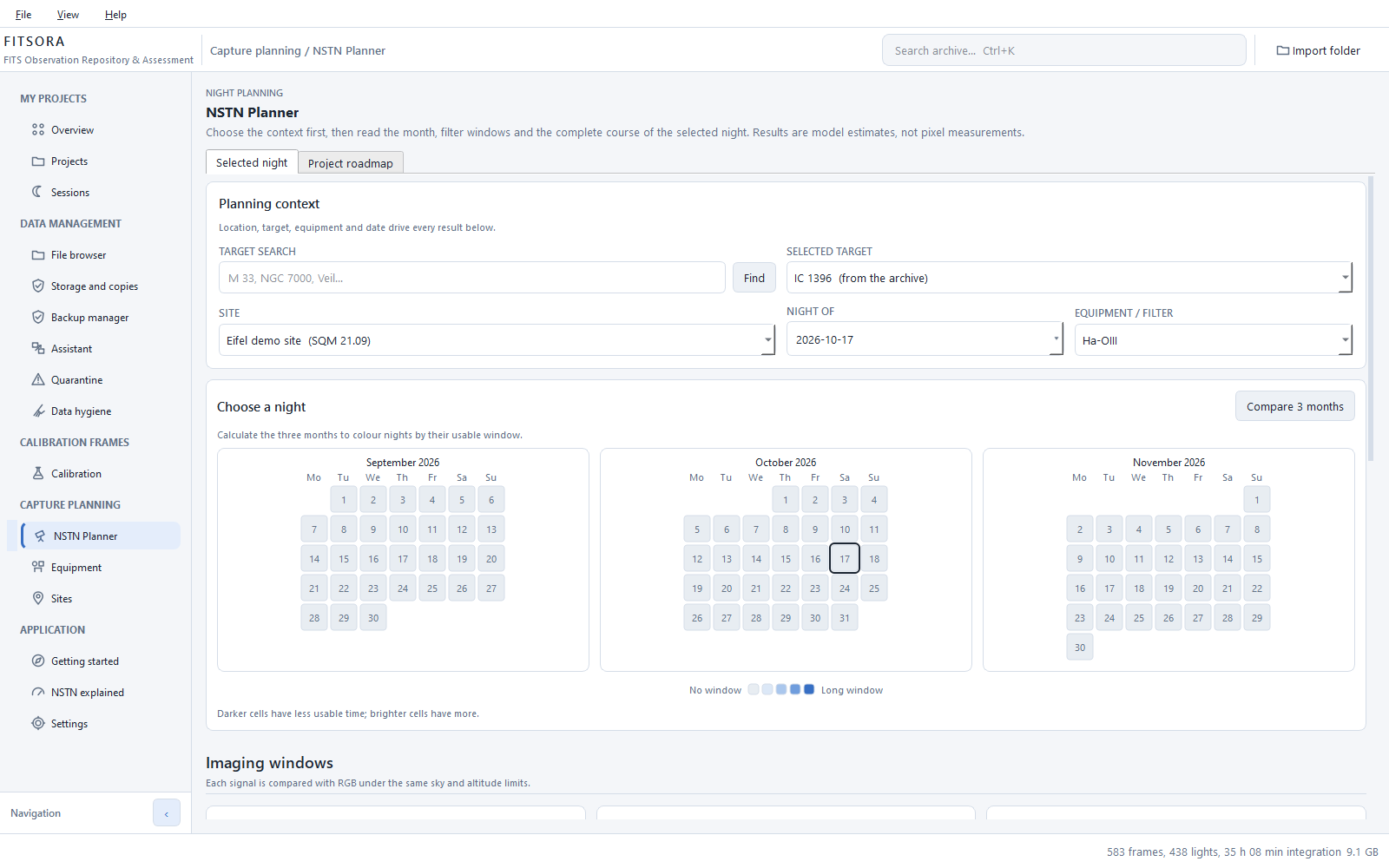
The planner is part of the same application
Plan visibility, moon separation and usable windows for coming nights, for an existing project or a new target. It works offline, without an account, even at an observing site with no reception.
The planner shares the assessment switch. NSTN is named after a free exposure calculator on astro-tools.de; FITSORA runs its model itself, offline. What NSTN means.
The Backup manager
Backups you can check
Jobs with previews, versions and evidence — with clear limits on what they prove.
Jobs for an archive or selected projects
Back up all catalogued raw data or selected projects, including the calibration frames those exposures need. Optionally include the FITSORA catalogue.
Preview, then start
Every file appears first in a list: copy, already present, or reuse. Problems come first. Writing begins only when you choose “Start backup”.
Incremental, with reuse
A further run copies only new or changed data. Unchanged files at the destination are reused rather than copied and read again.
Backup versions and integrity checks
Each run creates a backup version. “Check integrity” rereads every backed-up file and compares its SHA-256 checksum. Restore files from any version.
Archive coverage and data balance
Coverage shows which raw files have copy evidence and where the copies are. Labelled bars show what is being copied, verified and reused during a run.
Schedules, tests and retention
Daily or weekly backups, integrity checks and optional recovery tests, including runs while FITSORA is closed. Retention rules, protected versions and a recoverable trash keep things manageable.
Five differences that matter
- “Copy raw data” is not a backup version
- The assistant writes ordinary file copies to a folder. It creates no managed, versioned backup, schedule or coverage in the Backup manager. You manage these copies yourself.
- A database copy does not back up images
- It protects the catalogue and your decisions, rather than the image archive. Raw images need a backup job or a file copy.
- Coverage is not a fresh integrity check
- Copy evidence compares recorded evidence with current file sizes and timestamps. It does not reread the files. “Check integrity” is a separate action that reads and compares every backed-up file again.
- The same drive does not protect against its failure
- Copies on the drive holding the originals appear in blue and do not count as protection against that drive failing. Green means only a different drive as reported by the operating system. It does not prove that two partitions, a RAID or a NAS are physically independent, or that a copy is off site.
- Incomplete means incomplete
- If unreadable originals leave files missing, the version is marked “Incomplete”. You can restore and check it, but it has no verification date and never counts as a complete backup.
Optional assessment
The same night. Two filter lines. Two different verdicts.
A dual-band file contains two signals. Moonlight affects them differently.
A dual-band filter produces one file, but two assessments. After moonrise Hα remains usable while O III is overwhelmed, according to the model. Assessing the file as a whole can include nine frames that dilute the O III signal, without showing why the result looks flat.
Principles
Your archive stays yours
Works offline
No account, no server, no telemetry. Only two optional requests use the internet: the location map and the sky image in “Target and field”. Everything else runs locally, including the exposure planner.
Leaves source files alone
Scanning and assessment change nothing on disk. File operations are always a separate, confirmed step.
Preview before writing
Copying, moving and backing up show every file in advance, verify checksums and write a log. Moves can be undone; backup versions go into a recoverable trash. Permanent deletion needs a separate, explicit confirmation.